


Bank reconciliation is one of the most important accounting tasks for businesses of all sizes. Whether you run a small business, work as a freelancer, or manage company finances, reconciling your bank account helps ensure your financial records are accurate and up to date. Without regular reconciliation, errors can go unnoticed, cash flow can become difficult to track, and financial reporting may become unreliable.
Fortunately, performing a bank reconciliation using Excel is both practical and cost-effective. Microsoft Excel offers powerful tools that allow you to compare your bank statement with your accounting records, identify discrepancies, and maintain accurate books without investing in expensive accounting software.
What Is Bank Reconciliation?
Bank reconciliation is the process of comparing the transactions recorded in your business’s cash book or accounting records with those listed on your bank statement. The purpose is to ensure that both records match after accounting for timing differences, bank charges, interest income, and other adjustments. Since businesses and banks often record transactions on different dates, temporary differences are common. Reconciling accounts helps identify these differences and confirms that your financial records accurately reflect your available cash.
A completed bank reconciliation statement shows why the bank balance and book balance may differ while proving that both balances ultimately reconcile after adjustments.
Why Do Bank and Book Balances Differ?
Several reasons can cause discrepancies between your accounting records and your bank statement:
- Outstanding checks that have not yet cleared the bank
- Deposits in transit recorded by the business but not yet processed by the bank
- Monthly bank service charges
- Interest earned on bank balances
- Direct debits or automatic payments
- Recording mistakes in either the cash book or bank records
- Duplicate or omitted transactions
These differences are usually normal, but they should always be investigated during reconciliation.
Why Bank Reconciliation Is Important for Every Business
Regular bank reconciliation is more than just an accounting exercise. It provides valuable insights into your company’s financial health while reducing the risk of costly mistakes.
Businesses that reconcile their bank accounts monthly often experience better cash flow visibility and stronger financial control.
Benefits of Regular Bank Reconciliation
- Detect accounting errors before they become larger problems.
- Identify unauthorized or fraudulent transactions quickly.
- Improve financial reporting accuracy.
- Keep bookkeeping records current.
- Ensure accurate cash flow management.
- Simplify tax preparation.
- Support internal and external audits.
- Maintain confidence in financial statements.
- Prevent duplicate or missing transaction entries.
- Improve budgeting and forecasting decisions.
Better Cash Flow Management
Reconciling your bank account helps you understand how much cash is actually available. Businesses can make informed purchasing, payroll, and investment decisions based on accurate balances rather than estimated figures.
Improved Fraud Detection
Unauthorized withdrawals, duplicate payments, or suspicious bank transactions become much easier to identify during regular reconciliation. Early detection minimizes financial losses and improves internal controls.
More Accurate Financial Reports
Financial statements are only as reliable as the data behind them. Regular reconciliation ensures balance sheets, cash flow statements, and profit reports reflect the company’s true financial position.
What You Need Before Starting Bank Reconciliation in Excel
Before opening Excel, gather all the documents you’ll need. Having complete information reduces reconciliation time and minimizes errors.
Bank Reconciliation Checklist
Prepare the following:
- Latest bank statement
- Cash book or general ledger
- Previous month’s reconciliation report
- Microsoft Excel
- Outstanding checks list
- Deposits in transit
- Bank fee details
- Interest earned information
- Direct debit notifications
- Credit card settlement reports (if applicable)
Organize Your Documents
Arrange transactions in chronological order before starting. This makes matching transactions much faster and reduces the chance of overlooking entries.
Keeping digital copies of statements also allows you to search transactions quickly while reconciling.
Understanding Common Differences Between Bank Statement and Cash Book
One of the most common questions during reconciliation is why the bank balance differs from the accounting records. Most differences are timing-related and can be explained after careful review.
| Bank Statement | Cash Book |
|---|---|
| Monthly bank fees | Missing entries |
| Interest received | Recording errors |
| Outstanding checks | Duplicate transactions |
| Direct debits | Incorrect amounts |
| Returned payments | Timing differences |
| Automatic transfers | Manual entry mistakes |
Let’s look at each difference more closely.
Outstanding Checks
Outstanding checks are payments recorded in your accounting records but not yet processed by the bank. These remain outstanding until the recipient deposits or cashes the check.
Deposits in Transit
Deposits may appear in your books immediately after being made but may take one or more business days before appearing on the bank statement.
Bank Charges
Banks often deduct monthly maintenance fees, wire charges, or service fees automatically. If these charges haven’t been entered into your accounting records, they’ll create temporary differences.
Interest Income
Many business bank accounts earn interest. Since banks credit interest directly, businesses must record this income when reconciling.
Recording Errors
Human error remains one of the leading causes of reconciliation issues. Examples include:
- Entering the wrong amount
- Posting transactions twice
- Forgetting to record receipts
- Incorrect transaction dates
- Mathematical mistakes
Regular reconciliation helps identify and correct these issues before they affect financial reporting.
How to Perform a Bank Reconciliation Using Excel
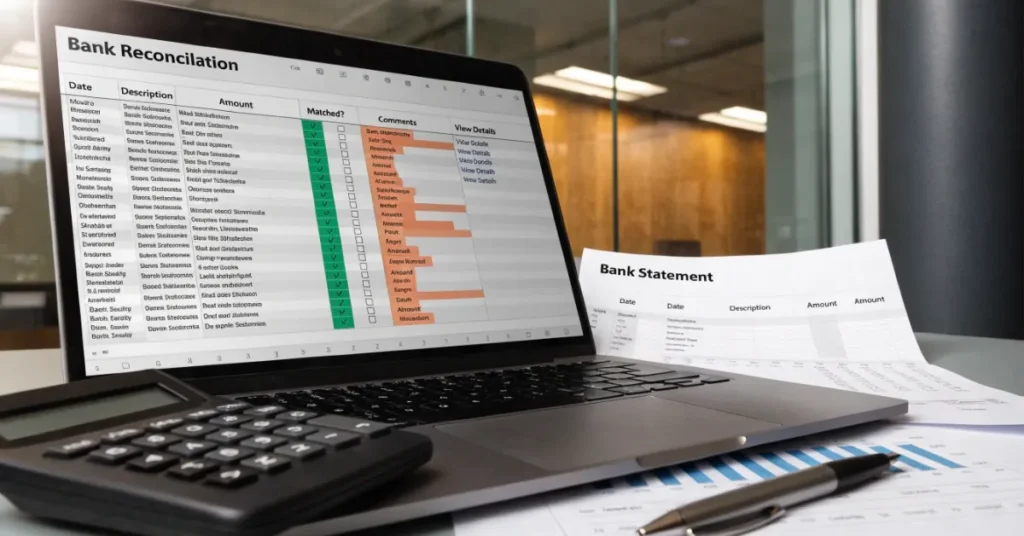
Excel is one of the easiest tools for creating a structured bank reconciliation statement. By organizing transactions into a simple spreadsheet, you can quickly compare records and identify discrepancies.
Follow these steps to complete the process accurately.
Step 1 – Gather Your Financial Documents
Before creating your spreadsheet, collect every document related to your bank transactions.
These typically include:
- Current month’s bank statement
- Cash book or accounting ledger
- Previous reconciliation report
- Deposit slips
- Payment receipts
- Check register
- Electronic payment records
Double-check that all documents cover the same accounting period. Comparing records from different periods will lead to inaccurate results.
Pro Tip
Save electronic bank statements in PDF format while keeping your Excel reconciliation workbook in the same folder. This makes future reviews much easier.
Step 2 – Create a Bank Reconciliation Spreadsheet in Excel
Open Microsoft Excel and create a structured reconciliation worksheet.
A simple layout might include the following columns:
| Date | Description | Cash Book | Bank Statement | Difference | Status |
|---|---|---|---|---|---|
| 01/07 | Customer Payment | 1,500 | 1,500 | 0 | Matched |
| 03/07 | Office Rent | (800) | (800) | 0 | Matched |
| 05/07 | Bank Charges | — | (25) | 25 | Pending |
Useful Formatting Tips
- Convert the range into an Excel Table for easier sorting and filtering.
- Use bold headers to improve readability.
- Apply currency formatting to all monetary values.
- Freeze the header row to keep column titles visible while scrolling.
- Use conditional formatting to highlight unmatched transactions automatically.
A well-organized spreadsheet reduces manual work and makes reconciliation easier each month.
Step 3 – Match Every Transaction
This is the core of the bank reconciliation process.
Compare every transaction recorded in your cash book against your bank statement. For each matching transaction:
- Compare transaction dates.
- Verify payment references.
- Check transaction descriptions.
- Confirm payment amounts.
- Mark matched entries as “Completed” or “Matched.”
Example
| Cash Book | Bank Statement | Result |
|---|---|---|
| Customer Payment – $2,000 | Customer Payment – $2,000 | ✓ Match |
| Supplier Payment – $750 | Supplier Payment – $750 | ✓ Match |
| Bank Fee | Not Recorded | Outstanding |
| Interest Income | Not Recorded | Outstanding |
Transactions that do not match should remain unmarked until you determine the reason for the difference.
Best Practice
Work through transactions in date order and reconcile one entry at a time. This systematic approach minimizes errors and makes it easier to identify missing or duplicate transactions. By the end of this step, most transactions should already match, leaving only a few differences that require investigation in the next stages of the reconciliation process.
Step 4 – Identify Missing Transactions
Once you’ve matched all obvious transactions, the remaining unmatched entries require investigation. These differences are usually legitimate and can be resolved by updating your records or identifying timing differences. Review every unmatched transaction carefully instead of making assumptions. Even a small discrepancy can affect your financial statements if left unresolved.
Common Missing Transactions
The following items frequently appear on bank statements before they are recorded in the cash book:
- Monthly bank service charges
- Interest earned
- Direct debits and standing orders
- Automatic loan repayments
- Credit card processing fees
- Returned or bounced cheques
- Wire transfer fees
- Merchant service charges
For example, if your bank deducts a monthly maintenance fee of AED 50 but it hasn’t been recorded in your books, your cash book balance will be higher than your bank statement. Recording the fee resolves the difference immediately.
Investigate Unmatched Transactions
If a transaction doesn’t appear in one record, ask yourself:
- Was it recorded in the wrong month?
- Was the amount entered incorrectly?
- Is it a duplicate entry?
- Has the transaction cleared the bank yet?
- Was it omitted entirely?
Taking the time to investigate each difference helps maintain accurate financial records and prevents future reconciliation issues.
Step 5 – Record Necessary Adjustments
After identifying the missing or incorrect transactions, update your accounting records with the necessary adjustments. Remember that you should never alter your bank statement. Instead, adjust your cash book to reflect legitimate transactions that were missing or recorded incorrectly.
Common Adjustments
These entries are commonly added during reconciliation:
- Bank service charges
- Interest income
- Direct debit payments
- Automatic deposits
- NSF (Non-Sufficient Funds) cheques
- Corrected transaction amounts
- Error corrections
Example Journal Entries
| Transaction | Debit | Credit |
|---|---|---|
| Bank Charges | Bank Charges Expense | Bank Account |
| Interest Earned | Bank Account | Interest Income |
| Returned Cheque | Accounts Receivable | Bank Account |
After recording all adjustments, recalculate your cash book balance before continuing.
Best Practice
Maintain supporting documentation for every adjustment. Saving bank notifications, receipts, invoices, and payment confirmations makes future audits much easier.
Step 6 – Calculate the Ending Balance
Now that all adjustments have been entered, calculate your updated cash book balance. Excel makes this process simple by using formulas instead of manual calculations, reducing the likelihood of mathematical errors.
Example Spreadsheet
| Description | Amount |
|---|---|
| Opening Balance | 25,000 |
| Total Deposits | 12,500 |
| Total Payments | (9,200) |
| Bank Charges | (150) |
| Interest Income | 45 |
| Closing Balance | 28,195 |
Useful Excel Formulas
Calculate totals:
=SUM(B2:B20)Calculate differences:
=B2-C2Display a reconciliation status:
=IF(E2=0,"Matched","Review")Count unmatched transactions:
=COUNTIF(F2,"Review")Using formulas keeps calculations accurate and automatically updates totals whenever data changes.
Step 7 – Verify That Both Balances Match
The final step is confirming that your adjusted cash book balance matches the adjusted bank balance after accounting for outstanding items. If the balances are identical, your reconciliation is complete.
If they still differ, review the following:
- Outstanding cheques
- Deposits in transit
- Bank fees
- Interest entries
- Duplicate transactions
- Typing errors
- Formula mistakes
- Missing journal entries
Never force the numbers to match. Every difference should have a valid explanation supported by documentation.
Final Reconciliation Checklist
Before finalizing your reconciliation:
- All transactions matched
- Outstanding cheques identified
- Deposits in transit verified
- Bank charges recorded
- Interest income recorded
- Errors corrected
- Ending balances agree
- Workbook saved securely
Reconciling your accounts monthly makes this process faster because there are fewer transactions to review each time.
Practical Example of Bank Reconciliation Using Excel
Let’s walk through a simple example to see how a bank reconciliation works in practice.
Business Scenario
ABC Trading has the following balances at the end of June:
| Item | Amount (AED) |
|---|---|
| Cash Book Balance | 18,750 |
| Bank Statement Balance | 18,200 |
After reviewing both records, the accountant identifies:
- Outstanding cheque: AED 600
- Deposit in transit: AED 950
- Bank charges: AED 150
- Interest income: AED 50
Bank Reconciliation Statement
| Description | Amount (AED) |
|---|---|
| Cash Book Balance | 18,750 |
| Less: Bank Charges | (150) |
| Add: Interest Earned | 50 |
| Adjusted Cash Book | 18,650 |
| Bank Statement Balance | 18,200 |
| Add: Deposit in Transit | 950 |
| Less: Outstanding Cheque | (500) |
| Adjusted Bank Balance | 18,650 |
Both adjusted balances now match, confirming that the reconciliation is complete.
Key Takeaway
This example demonstrates that differences between your bank statement and cash book are often caused by timing and routine banking transactions rather than accounting errors.
Excel Formulas That Make Bank Reconciliation Easier
Microsoft Excel includes several built-in formulas that can significantly speed up the reconciliation process.
| Formula | Purpose |
|---|---|
SUM() | Calculates totals |
IF() | Identifies matched transactions |
COUNTIF() | Counts duplicates or unmatched items |
XLOOKUP() | Finds matching transactions |
VLOOKUP() | Compares records between tables |
TEXT() | Standardizes date formatting |
ABS() | Removes negative signs when comparing values |
1. SUM()
Calculates total deposits, withdrawals, or balances.
=SUM(B2:B50)2. IF()
Shows whether a transaction matches.
=IF(C2=D2,"Matched","Review")3. COUNTIF()
Counts unmatched transactions that still need attention.
=COUNTIF(E:E,"Review")4. XLOOKUP()
Searches for matching transactions between two lists.
Example:
=XLOOKUP(A2,Sheet2!A:A,Sheet2!B:B)This function is especially useful when reconciling large transaction volumes.
5. VLOOKUP()
If you’re using an older version of Excel without XLOOKUP, VLOOKUP remains a reliable alternative.
6. Conditional Formatting
Although not a formula, Conditional Formatting automatically highlights:
- Duplicate entries
- Missing transactions
- Negative balances
- Amount differences
Using visual indicators makes reconciliation much faster and reduces the chance of overlooking discrepancies.
Common Bank Reconciliation Mistakes to Avoid

Even experienced bookkeepers can make reconciliation mistakes. Understanding these common errors helps improve the accuracy of your financial records.
1. Skipping Monthly Reconciliation
Waiting several months before reconciling increases the number of transactions that need to be reviewed, making errors harder to locate.
Tip: Reconcile your accounts every month.
2. Ignoring Bank Charges
Small bank fees may seem insignificant, but failing to record them creates unnecessary discrepancies.
3. Recording Transactions Twice
Duplicate entries are one of the most common bookkeeping errors. Always check whether a transaction has already been entered before recording it again.
4. Entering Incorrect Amounts
A simple typing mistake can throw off an entire reconciliation.
Double-check:
- Decimal points
- Currency
- Payment amounts
- Dates
5. Forgetting Deposits in Transit
Deposits made near the end of the month often appear in the following month’s bank statement.
These should be included during reconciliation instead of being treated as missing funds.
6. Overlooking Outstanding Cheques
Cheques that haven’t cleared the bank should remain on your reconciliation until they are processed.
7. Formula Errors in Excel
Incorrect cell references can produce inaccurate totals.
Before finalizing your workbook:
- Review every formula.
- Lock important formula cells.
- Test calculations after making changes.
Tips to Make Bank Reconciliation Faster in Excel
A few Excel best practices can save time and improve accuracy during every reconciliation.
Organize Data Using Excel Tables
Excel Tables automatically expand as you add transactions, making formulas and formatting easier to manage.
Use Filters
Filter transactions by:
- Date
- Amount
- Status
- Transaction type
This speeds up transaction matching.
Apply Conditional Formatting
Highlight:
- Missing values
- Duplicate entries
- Negative amounts
- Transactions requiring review
Freeze Header Rows
Keeping column headings visible improves navigation when working with long transaction lists.
Learn Keyboard Shortcuts
Common shortcuts include:
- Ctrl + T – Create a table
- Ctrl + Shift + L – Apply filters
- Ctrl + ; – Insert today’s date
- Ctrl + Arrow Keys – Navigate quickly through data
Create a Reusable Template
Save your completed reconciliation workbook as a template with:
- Pre-built formulas
- Standard formatting
- Conditional formatting rules
- Transaction categories
Using the same template each month reduces preparation time and ensures consistency.
Reconcile Regularly
Monthly reconciliation is far easier than reconciling several months at once. Consistent reviews help maintain accurate records and allow you to identify discrepancies before they become larger issues.
When Excel May No Longer Be Enough
Microsoft Excel is an excellent tool for managing bank reconciliations, especially for freelancers, startups, and small businesses with a relatively low number of monthly transactions. It is affordable, flexible, and familiar to most users. However, as your business grows, relying solely on spreadsheets can become time-consuming and increase the risk of manual errors.
Here are some signs that it may be time to move beyond Excel:
- You process hundreds or thousands of transactions every month.
- Your business manages multiple bank accounts.
- Payroll, inventory, and VAT calculations are becoming more complex.
- Multiple employees need simultaneous access to financial records.
- Manual data entry consumes too much time.
- You need real-time financial reporting and automated reconciliation.
- Your business requires stronger internal controls and audit trails.
Cloud-based accounting software can automate bank feeds, reduce manual work, and provide real-time financial insights. Many solutions also integrate with invoicing, payroll, expense management, and tax reporting, making financial management more efficient as your business expands.
The best choice depends on your transaction volume, reporting requirements, and long-term business goals. For many small businesses, Excel remains a practical starting point, while growing organizations often benefit from adopting dedicated accounting software.
How Ripple Business Setup Can Help with Bookkeeping and Bank Reconciliation
Accurate bank reconciliation is essential for maintaining reliable financial records, improving cash flow visibility, and preparing for audits and tax compliance. While Excel is an excellent solution for many businesses, growing companies often require professional bookkeeping support to save time and reduce accounting errors. Ripple Business Setup offers bookkeeping, accounting, VAT, corporate tax, and financial management services tailored to businesses across the UAE. Whether you need help maintaining accurate records, preparing bank reconciliation statements, or improving your accounting processes, experienced professionals can provide practical support based on your business needs.
For expert assistance, contact Ripple Business Setup at +971 50 593 8101, email info@ripplellc.ae, or WhatsApp +971 4 250 0833 to discuss your bookkeeping and accounting requirements.
FAQ
What is bank reconciliation in Excel?
Bank reconciliation in Excel is the process of comparing your cash book or accounting records with your bank statement using an Excel spreadsheet. The goal is to identify and resolve differences so that both balances accurately reflect your business’s financial position.
How often should bank reconciliation be performed?
Most businesses should reconcile their bank accounts at least once a month. Companies with a high volume of daily transactions may benefit from weekly or even daily reconciliations to maintain accurate financial records.
Can small businesses use Excel for bank reconciliation?
Yes. Excel is a cost-effective solution for freelancers, startups, and small businesses. It provides flexibility for creating customized reconciliation worksheets and tracking financial transactions without investing in accounting software.
What causes differences between the bank statement and cash book?
Common reasons include:
- Outstanding cheques
- Deposits in transit
- Bank charges
- Interest earned
- Direct debits
- Recording mistakes
- Duplicate transactions
- Timing differences
Most discrepancies can be resolved by reviewing transactions carefully and updating your accounting records where necessary.
Is there a bank reconciliation template in Excel?
Yes. Microsoft Excel offers built-in templates, and many businesses create their own customized bank reconciliation templates with formulas, conditional formatting, and transaction tracking to streamline the reconciliation process.
Which Excel formulas are useful for bank reconciliation?
Some of the most helpful formulas include:
SUM()for calculating totalsIF()for checking matching transactionsCOUNTIF()for identifying duplicate or unmatched entriesXLOOKUP()orVLOOKUP()for comparing transaction listsABS()for comparing values without positive or negative signs
These functions improve accuracy and reduce manual work.
How long does a bank reconciliation take?
The time required depends on the number of transactions and the quality of your bookkeeping. A small business with organized records may complete a monthly reconciliation in 30 to 60 minutes, while larger businesses may require more time.
What should I do if my balances don’t match?
If your balances don’t match after reconciliation:
- Review unmatched transactions.
- Check for data entry errors.
- Verify outstanding cheques and deposits in transit.
- Confirm bank charges and interest entries.
- Review Excel formulas for calculation errors.
- Compare transaction dates and amounts carefully.
Never adjust figures simply to force the balances to match. Every difference should have a valid explanation.
Final Thoughts
Performing a bank reconciliation using Excel is one of the most effective ways to maintain accurate financial records and strengthen your bookkeeping process. By comparing your cash book with your bank statement on a regular basis, you can identify discrepancies, correct errors, detect unauthorized transactions, and gain a clearer understanding of your cash flow.
Disclaimer: This article is intended for general informational and educational purposes only. While every effort has been made to ensure the accuracy of the information provided, accounting requirements may vary depending on your business structure, industry, and jurisdiction. This content should not be considered financial, accounting, tax, or legal advice. Consult a qualified accounting or financial professional before making decisions based on your specific business circumstances.